Moderation
Not all visitors of your room behave equally. Some users might have rude manners, or might be harassing users, or be plainly breaching your code of conduct. Moderating those users is an important step to providing a pleasant and safe experience for everyone.
User reports
Users faced with visitors having an unacceptable behavior can report them, using the "Moderation" button.
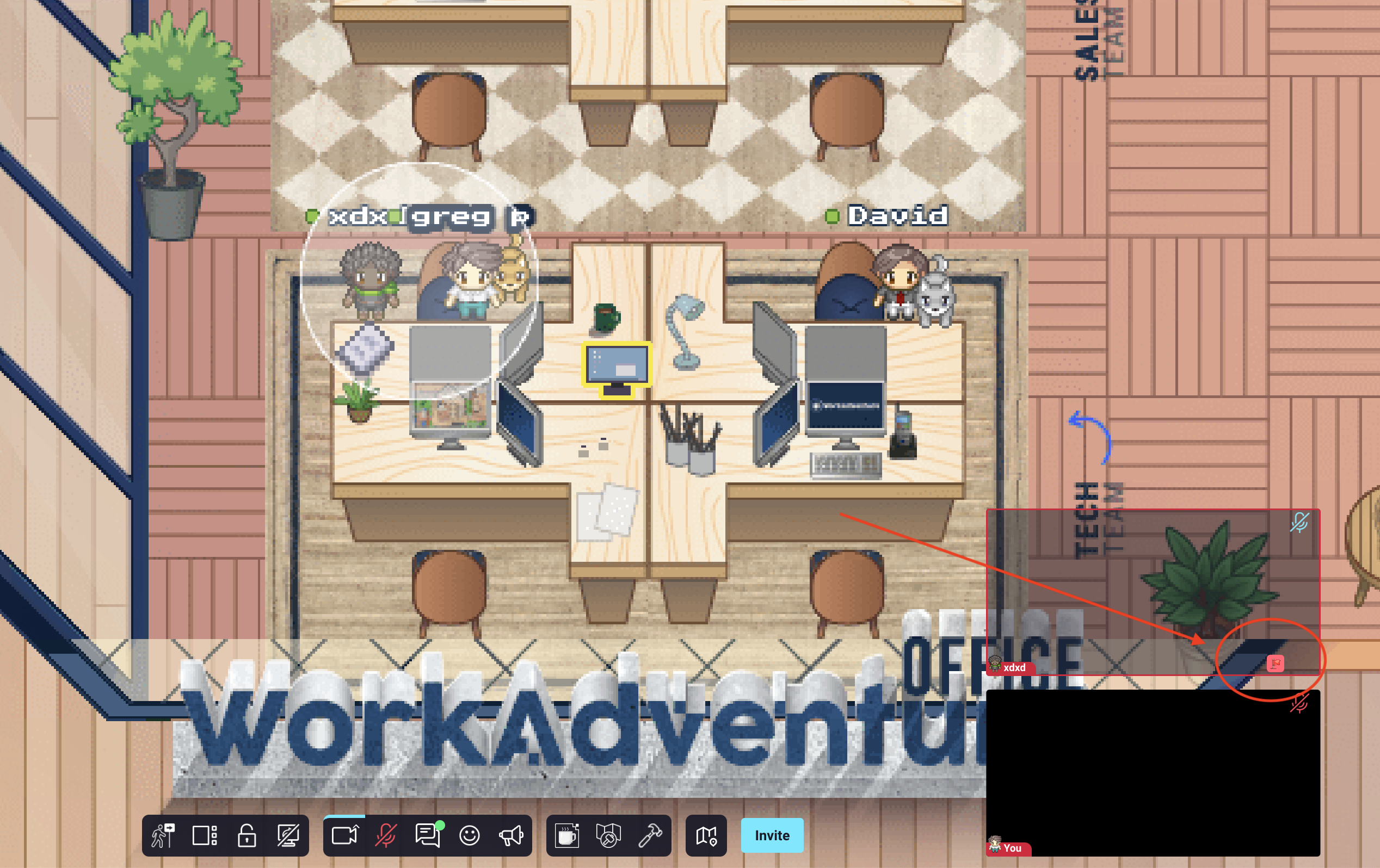
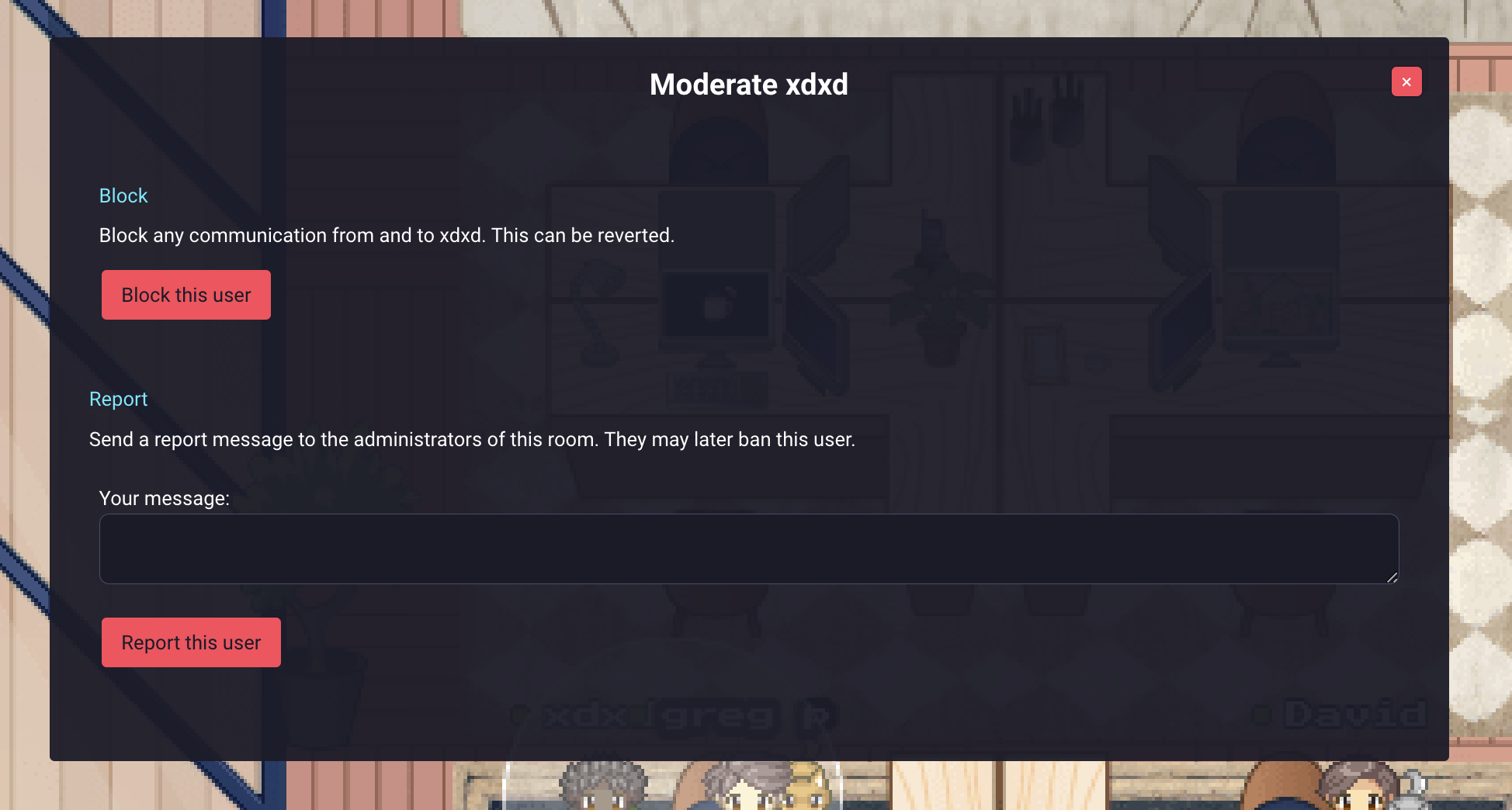
By clicking on the "Moderation" button, the user is offered a popup with 2 choices: Block the user: The offending user is only blocked for the offended user. Any kind of communication is forbidden (either via video, audio or chat). The offending user can still talk with other people around. Report the user: This sends a message to the administrators of the organization. No email is sent: the list of complaints is available in the "Reports" tab of administration dashboard.
Reports cannot be sent from a public room.
Viewing user reports
As a moderator / administrator, you will receive reports from your users. Upon receiving one or many reports regarding a given misbehaving user, you can ban the user. Reports are visible in the dedicated Reports page of the administration panel
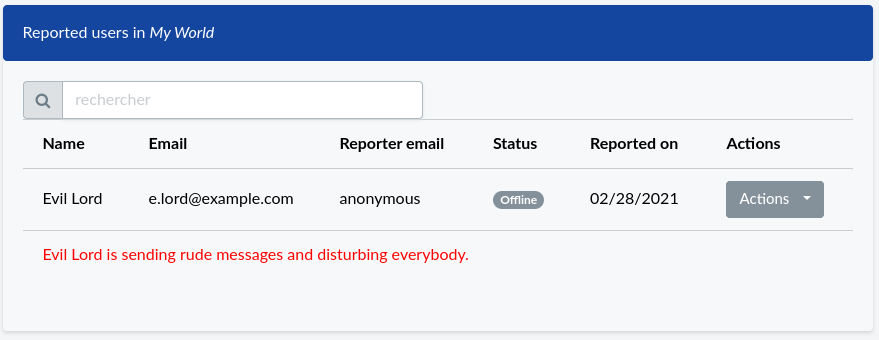
From this page, you can ban misbehaving users (see From the back office).
Kicking someone
Kicking disconnects a user from your world right away. It is a warning: they can come back by reloading the page.
Kicking and banning from the game require the "admin" tag. Add it to the member in the members list. The creator of the world has it.
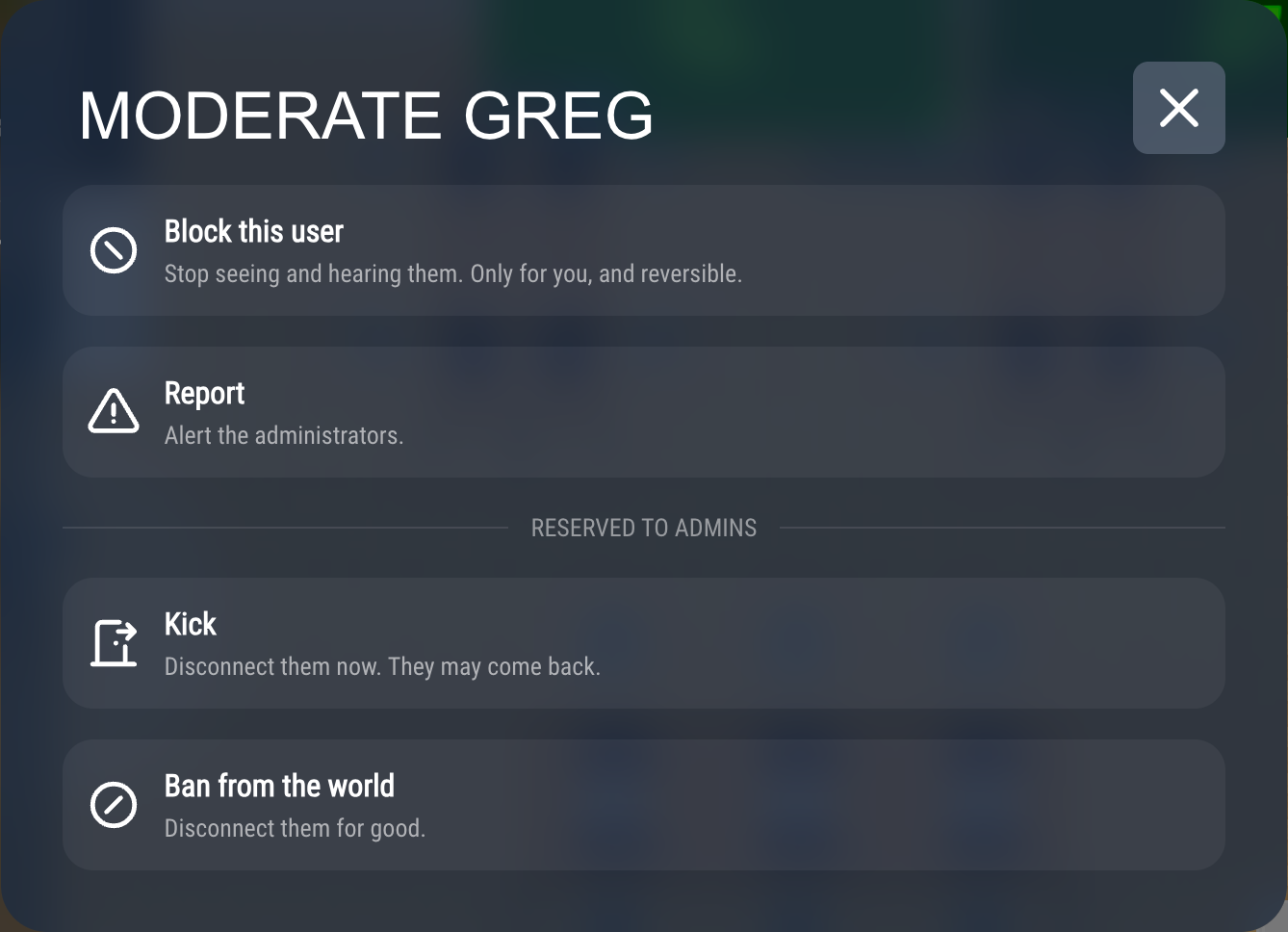
- Open the "Moderate" option of the user: click their Woka and choose "Moderate", or use "Moderate" next to their name in the user list, or "Moderation" in the menu of their video.
- In the "Moderate (user name)" popup, under "Reserved to admins", click "Kick".
- Optionally, write a reason. The user will see it.
- Click "Kick".
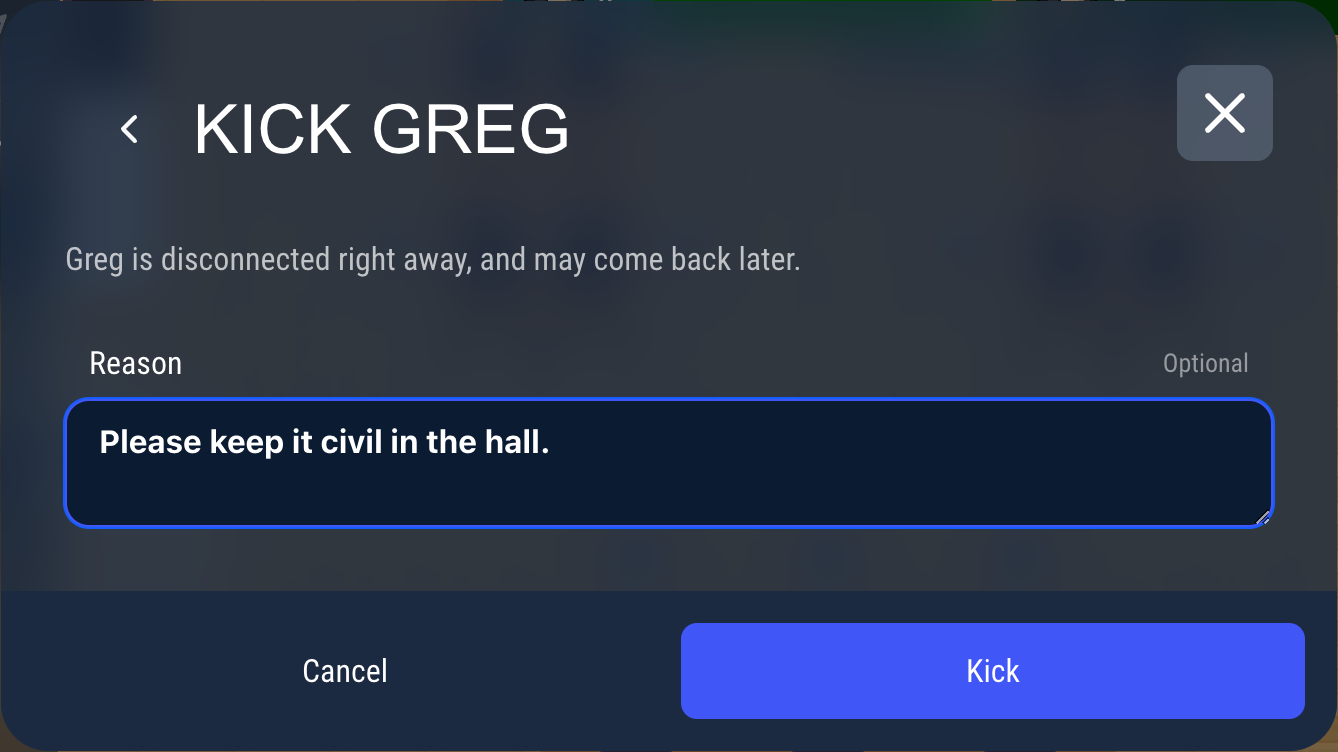
The user sees a "Kicked" screen, with your reason if you wrote one.

The "Kick off user" option in the menu of a video does not disconnect the user from your world. It only removes them from the meeting or the discussion they are in.
Banning someone
A ban is permanent: the user cannot join your world again until you lift the ban. A ban only applies to your world.
From the game
- Open the "Moderate" option of the user, as for kicking.
- Under "Reserved to admins", click "Ban from the world".
- Choose what to ban:
- This account (default): the user cannot come back with this account.
- This account and its IP address: also blocks new accounts created from the same connection.
- Optionally, write a reason. The user will see it.
- Click "Ban".
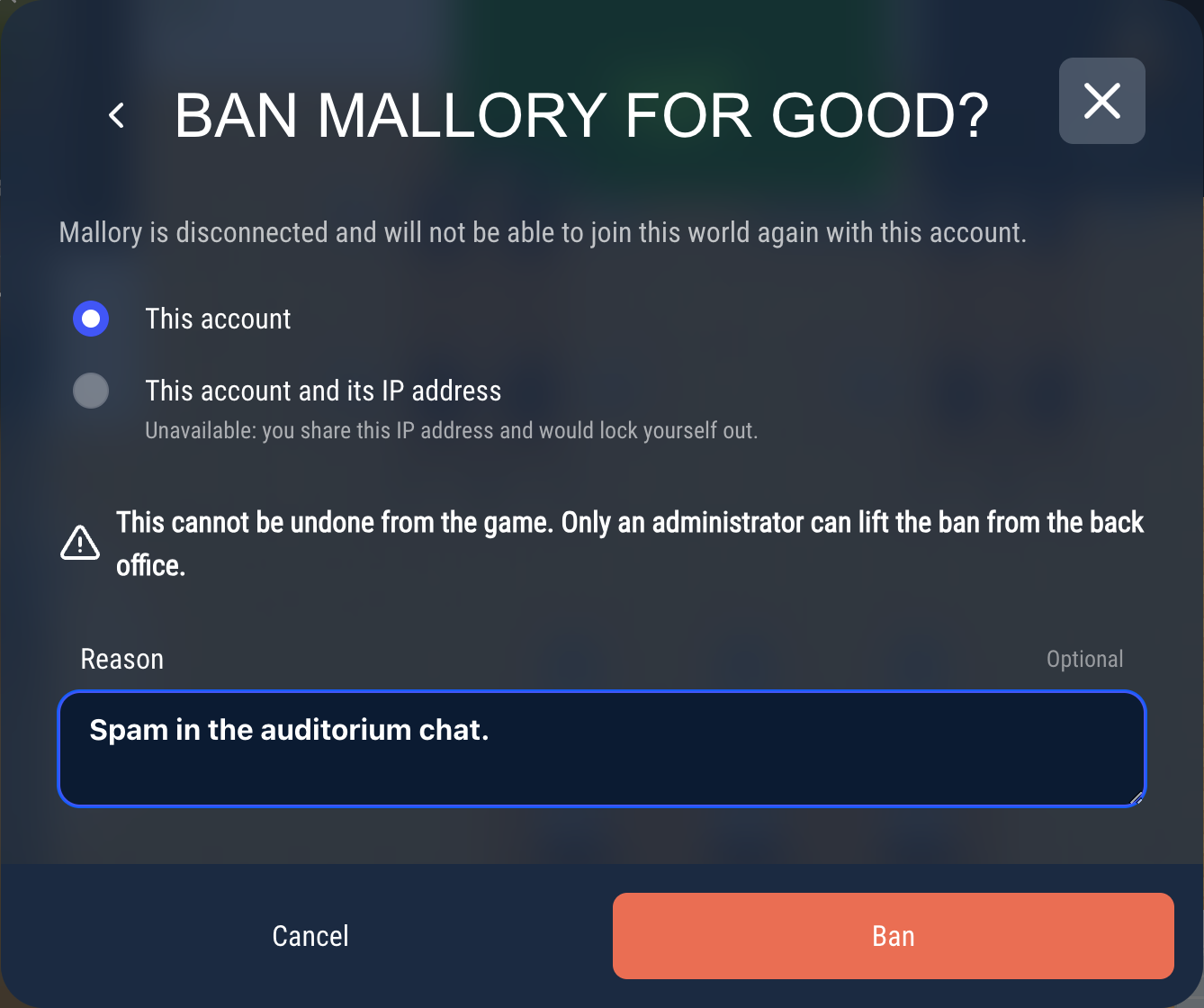
Use the IP address ban with care: everyone who shares the connection is banned too, for instance people in the same office or the same school. Before you confirm, the popup lists the people connected to your world from the same IP address right now, and the button becomes "Ban these (number) people". Someone who comes back later from this IP address is locked out too.
The IP address option is unavailable when the user is not connected any more, or when you share their IP address (you would lock yourself out).
The user sees a "Banned" screen right away, with your reason if you wrote one. If they try to come back, they are told that they have been banned.

From the back office
In the administration panel, open your world and use the "Ban" button:
- in the Members tab, to ban a member of your world. They cannot connect any more.
- in the Users tab, to ban a user currently connected to your world, for instance an anonymous visitor if you allow public access. Choose the kind of ban:
- Ban by ID: each user is given a semi-temporary ID, stored in "local storage" in the browser. The same ID is used when they close and open their browser again, but another browser or a private window generates a new ID. Banning someone by ID is easily circumvented: use it as a warning shot.
- Ban by IP: the IP address is banned, and no one using it can connect to your world any more. As in the game, this can ban everyone who shares the same IP address.
- in the Reports tab, to ban a reported user.
A ban message is required. It is shown to the user.
Lifting a ban
From the game
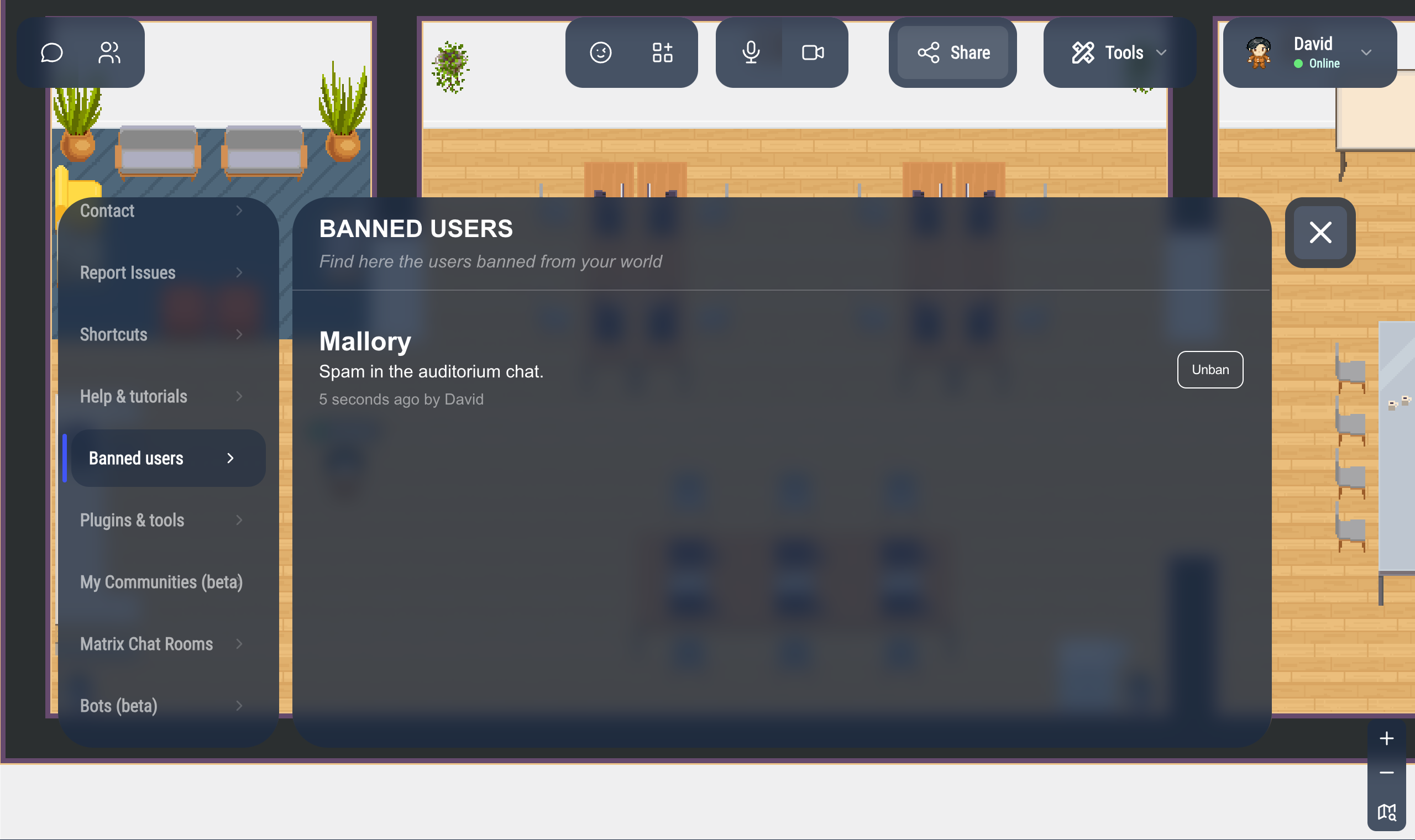
Users with the "admin" tag find a "Banned users" entry in the game menu. It lists everyone banned from your world, with the reason, who banned them and when, and the IP address for a ban that includes it.
Click "Unban" next to a user to lift their ban. There is no confirmation: the user can join your world again right away.
From the back office
The Banned Users tab of your world lists the same bans. Click the "Ban" button of a banned user (or of a banned member in the Members tab): the popup offers to "Unban" them.
Raised hands
Users with the "admin" tag can lower the hand of anyone who raised their hand, and give the floor to someone in the audience of a podium or of the megaphone.