How to run conferences and events
WorkAdventure has three built-in tools for talks and events. All of them are set up in the map editor, without Tiled:
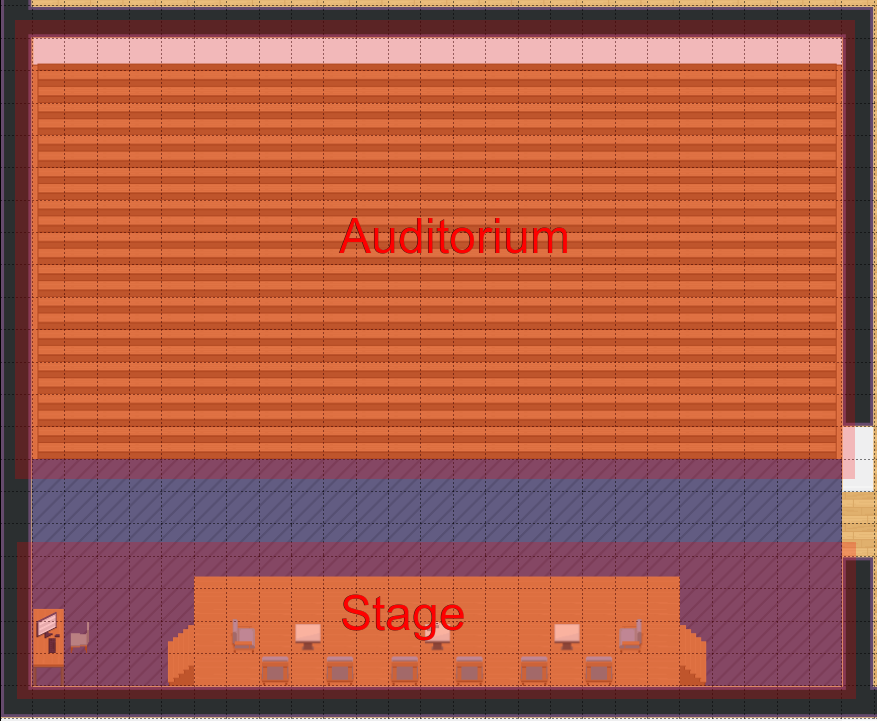
- Podium / Audience areas: a stage in your map. Whoever walks on the podium is broadcast to everyone standing in the linked audience area. Best for a conference room or an auditorium.
- The megaphone: a live broadcast of your camera, microphone or screen to everyone in the room, or in the whole world, wherever they are standing. Best for a keynote or an announcement.
- Meeting rooms: for small, interactive sessions where everyone can speak (see the "Meeting Room" area property).
Build a stage with Podium and Audience areas
In WorkAdventure, open the map editor (Tools > Map Editor in the action bar) and select the area editor.
- Draw the stage area and add the Podium property. Give it a Name (for example
MainStage).- Associate a dedicated chat channel opens a chat shared by the speakers and the audience.
- See attendees lets the speakers see the cameras of attendees who turned theirs on. Attendees still don't see each other.
- Draw the seating area and add the Audience property. In Podium Name, pick the podium you just created.
- Media to display before the live starts takes a link (for example a video or a poster) that the audience sees until a speaker arrives. Otherwise they see "Waiting for speaker".
- Allow talking and forming bubbles: by default, attendees can only listen and cannot start a bubble with their neighbours. Turn this on to let them talk to each other while in the audience.
- Walk on the podium to go live. Walk off it to stop.
You can draw several audience areas linked to the same podium. This can be useful if your audience zone is not square.
An area can hold only one of Podium, Audience, Meeting Room or Jitsi Room.
More details: Podium and Audience areas in the map-building docs.
Choose who can go on stage
The podium has no speaker list of its own. To keep it for your speakers, restrict access to the area:
In the members list, add a tag to your speakers (for example
speaker).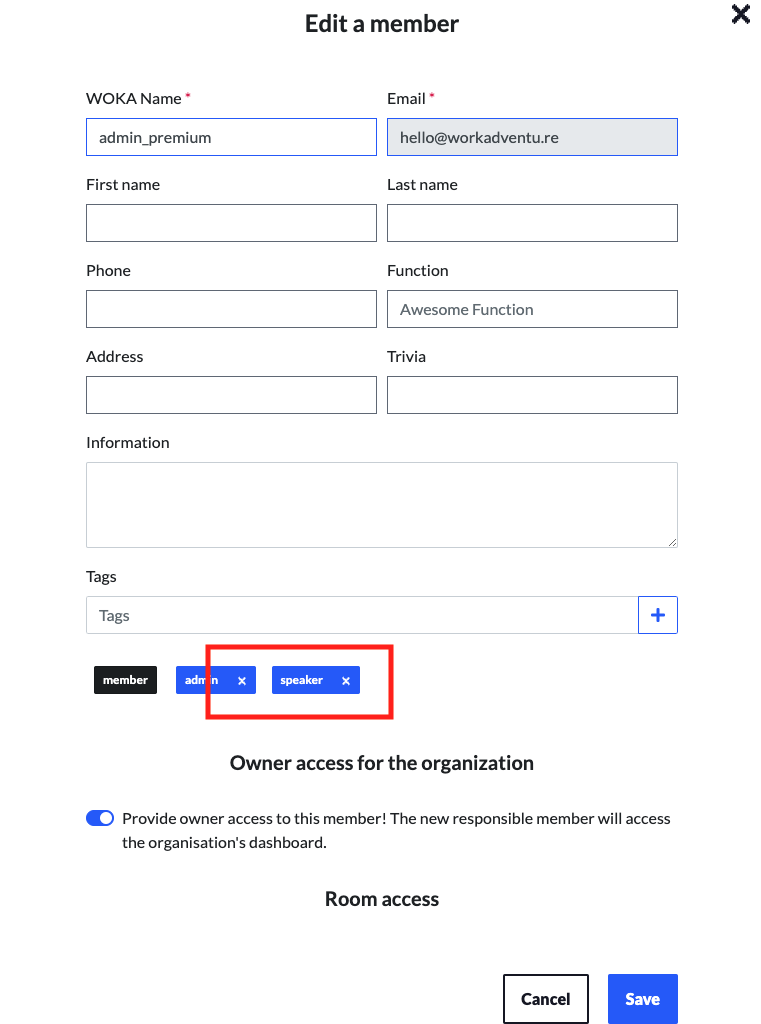
In the map editor, on the podium area, click Add rights and put
speakerin Access rights. Only members with this tag can enter the podium.
To cap the number of people in an audience area, add the Maximum users property to it.
Broadcast with the megaphone
The megaphone reaches everyone in the room or the world, not just one area.
1- Enable it
In the map editor, click Configure my room (the "gears" icon), then open the Megaphone tab and turn it on. It is off by default.
- Scope: Room (only this room) or World (all rooms of the world). To share one megaphone between several rooms, set the same Space name and the World scope in each room.
- Rights: the tags allowed to use the megaphone. Leave empty to let everyone use it. Admins are not exempt: if you set rights, add the admin's tag too.
- Auditorium mode: the speaker receives the camera and microphone of every attendee who has them on, but attendees don't see each other. Off by default.
- Enable megaphone recording: see Recording meetings.
2- Go live
Click Tools > Send global message, then Start live message. Pick your camera, microphone and/or screen and click Start megaphone. Click Stop megaphone when you are done.
See Sending global messages for text and audio announcements.
Streaming to YouTube or another platform
WorkAdventure's own tools don't stream to an external platform. Meeting room recordings are saved as files, they are not streamed.
To stream to YouTube Live, use a Jitsi Room area instead of a podium:
On the stage area, add the Jitsi Room property. Under More Options, set Moderator tag for the meeting room to your speakers' tag (for example
speaker). Members with this tag, or with theadmintag, become Jitsi moderators and can start a live stream.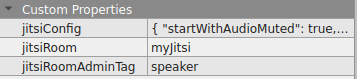
In YouTube Studio, copy your stream key. Set Stream latency to "Ultra low-latency" if you take questions, and turn on Allow embedding.
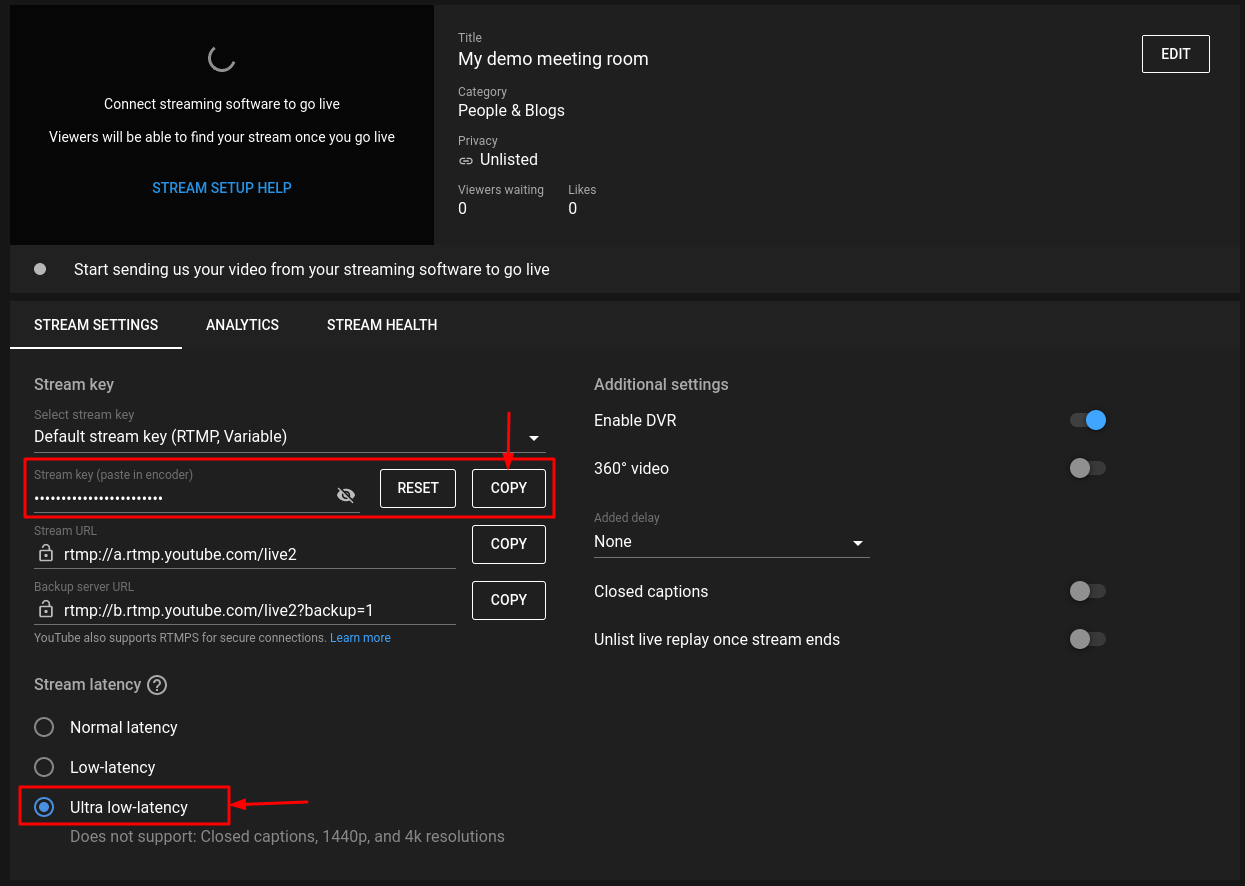
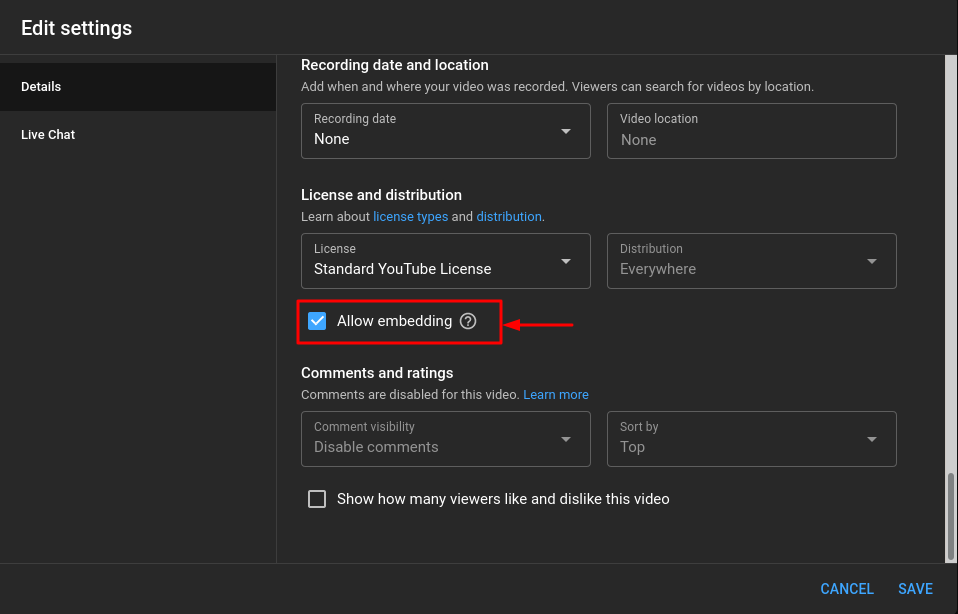
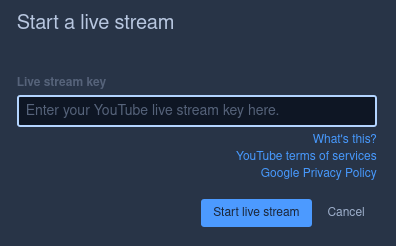
Log in as a moderator, walk on the stage, open Jitsi's live-streaming option, and paste the stream key. This depends on the Jitsi server supporting live streaming.

To show the stream in your map, add an Open Link property to the seating area with
https://www.youtube.com/embed/live_stream?channel=[channel ID]as Link URL. Putfullscreen; autoplay; encrypted-media; picture-in-picturein iFrame Allow.
See Moderating meeting rooms for Jitsi moderator rights.