Recording meetings
WorkAdventure enables you to record live conversations happening in bubbles or in meeting rooms, as well as megaphone broadcasts.
Starting a recording
To begin recording, click the Record button in the action bar.
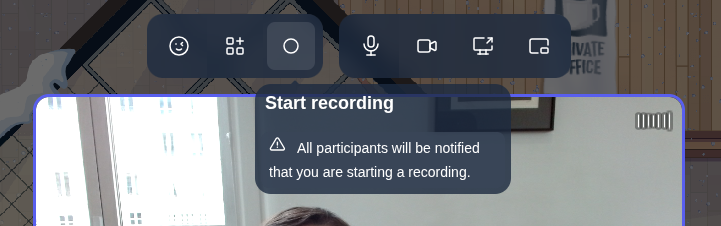
Click the same button again to stop the recording.
If there is more than one thing you could record at that moment (for instance, you are in a discussion while a megaphone broadcast is live), clicking Record opens a small picker instead of starting right away. It lists Record discussion and Record megaphone, each with its own start (or stop) button, and shows who is already recording, if anyone.
- Only one user can record a given meeting at a time. If a recording is already in progress, the Record button will be disabled for other participants.
- If the user who started the recording leaves the meeting or exits the bubble, the recording automatically stops.
Participants are notified
Everyone in the discussion (or listening to the megaphone) is told when a recording starts and stops:
- When a recording starts, the other participants see a red toast saying "Name has started a recording", followed by "A recording is in progress". The person recording sees "Recording is in progress".
- When it stops, the other participants see a "Recording complete" notification, and the person who recorded is told that the recording has been saved.
- In addition, a short spoken announcement is played to everyone, in their own language, at the start and at the end. This sound can be turned off (see below).
When the recording ends, it becomes available in the Recordings section located in the Apps tab of the action bar.
Recordings are stored for 3 months. After this period, they are automatically deleted. If you want to keep them, make sure to download them before the retention period ends.
Configuring who can record
By default, any logged-in user can start a recording in any bubble or meeting room.
You can restrict this ability to specific users by configuring a specific tag in the "Recording" setting screen.
In WorkAdventure, open the map editor (by clicking Tools > Map Editor in the action bar).
Then, click the Configure my room button (the "gears" icon), then select the Recording tab.
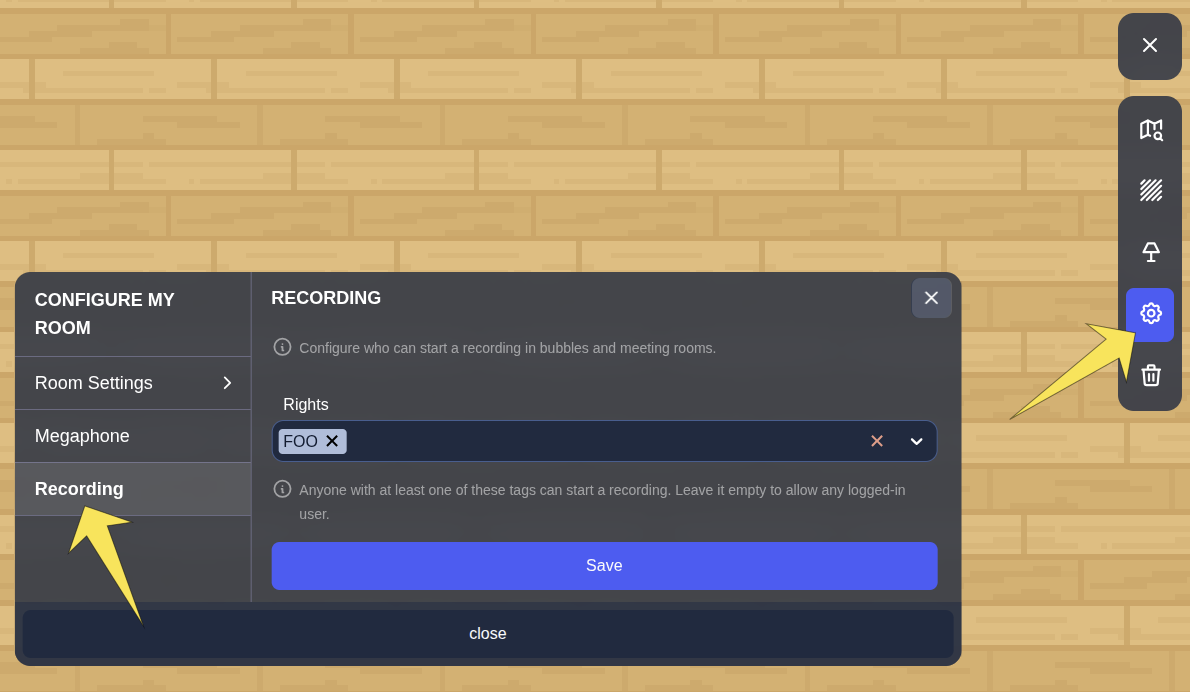
In the "rights" section, you can specify a tag that users must have to start a recording.
For instance, if you put recorder in this field, only users with the recorder tag (or the admin tag) will be able to start a recording.
You can grant tags to members from the admin dashboard.
If you put many tags, any of the tags will allow the user to start a recording.
The same tab has a Play sound notification on recording start and stop switch. It is on by default: every participant hears a short announcement when a recording starts or stops. Turn it off to keep only the on-screen notifications.
Recording the megaphone
Megaphone broadcasts can be recorded too, but this is off by default. In the map editor, open Configure my room > Megaphone. Once the megaphone is enabled, a Recording section offers two settings:
- Enable megaphone recording: allows starting a recording of the megaphone. When you turn it off, a recording already in progress can still be stopped.
- Recording rights: tags a user needs to record the megaphone. Leave it empty to add no extra restriction.
To record the megaphone, a user must be allowed to record (the "Rights" of the Recording tab), allowed to use the
megaphone (the megaphone "Rights"), and have one of the megaphone recording tags if you set any. The admin tag skips
both recording rights, but not the megaphone rights.
Recordings are available only in Premium worlds or self-hosted instances.
They are not available for public maps (maps whose URL starts with /_/).
Who can access the recordings?
Only the user who initiated the recording can view and download it.
From the Recordings section in the action bar, the user can:
- Browse their past recordings, as a list or as cards (a button in the top bar switches between List view and Card view)
- Download them locally
- Delete them. Each user can only delete their own recordings.
Once downloaded, the recording can be shared with anyone using third-party services or re-uploaded to the map (for instance, as a YouTube video embedded in a zone).
Your own server can be notified as soon as a recording is ready, with a download link valid for 7 days: subscribe a
webhook endpoint to recording. Handy to archive recordings before the 3-month retention ends.
Disabling recordings
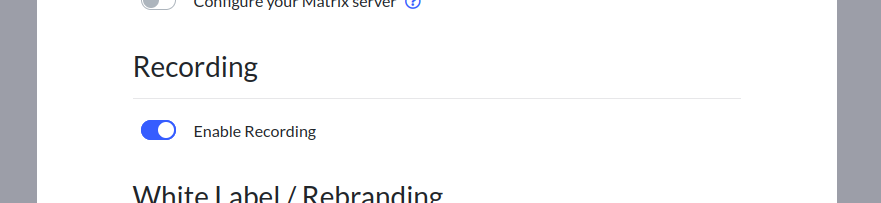
Administrators can disable the recording feature for an entire world from the admin dashboard.
In the “Edit your world” window, simply uncheck Enable Recording.
Where are recordings stored?
- SAAS
- Self-hosted
Recordings are stored in an encrypted storage bucket located in our cloud provider’s datacenter in Gravelines, France (EU).
They are retained for 3 months and then automatically deleted.
Recordings are stored in the S3-compatible bucket that you configured during the setup of your WorkAdventure instance.
Legacy: recording a Jitsi room
This only applies to areas that still use the Jitsi Room property. Meeting rooms use the recording described above.
A Jitsi room is recorded by Jitsi itself, into a Dropbox account. Only the Jitsi meeting is recorded: the WorkAdventure map is not visible in the recording.
Only moderators of the Jitsi room can record. To give moderator rights, see Jitsi rooms.
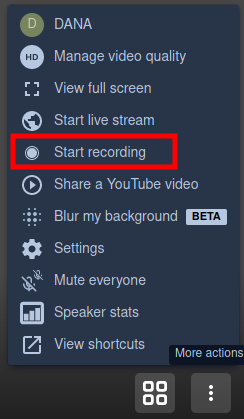
To record, open the Jitsi actions menu and click Start recording:
A popup appears:
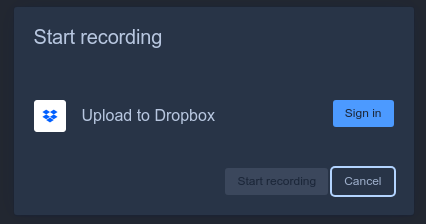
Click Sign in and enter your Dropbox credentials. The first time, Dropbox asks whether WorkAdventure may write to your Dropbox: accept. Then click Start recording.